
How Can We Help?
How to Add a New Hotel From the Partner Dashboard
- Log in to the Partner Dashboard using the Login link. It is located at the top right of the website, as shown below.

You will see the SafariQuest Partner Dashboard page similar to the one below:
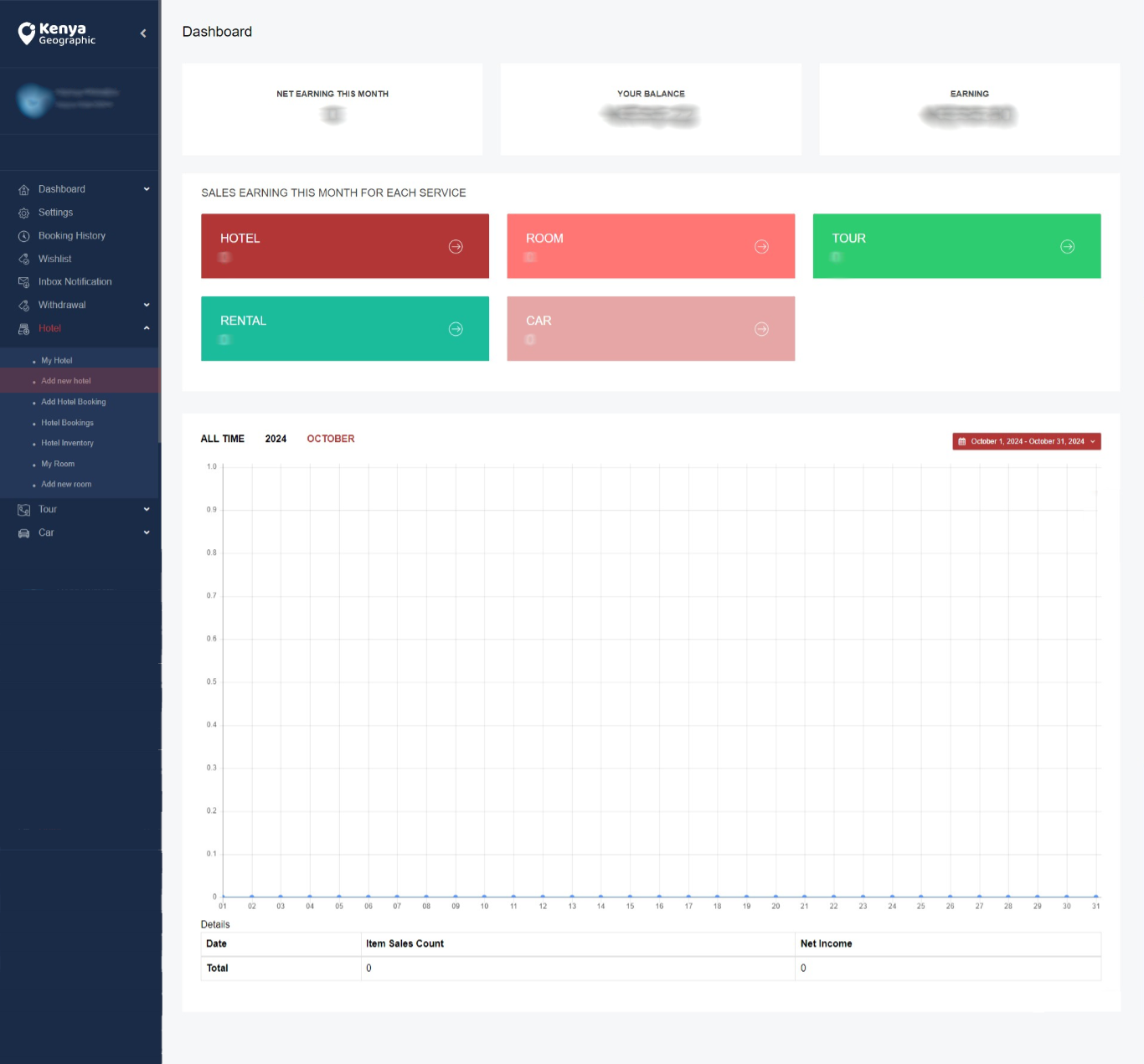
- Select Add new hotel highlighted in red below on the left side panel. You will come to the Add Hotel page with several tabs at the top labelled Basic Info, Facilities, Photos, Locations, and Policy. Start with Basic Info as shown below:

- Type in the Hotel Name. Ensure this is as it exists in your branding. This is also critical for SEO.
- Enter your Hotel Star Rating (Use the Tourism Regulatory Authority rating system which ranks hotels on a scale of 1 to 5).
- Add your hotel’s Story. We encourage our partners to think of this as their pitch. Do not be worried about showcasing your features and amenities here because the system provides plenty of opportunities elsewhere. Use this space instead to narrate your story. If there is a rich history behind your establishment, talk about this. Make sure this part is 300 words.
- Next, add the Hotel Logo. Keep this to 256 x 195 pixels.
- Add your business’ contact details. For what contact info to display, you have the option to choose between using agent contact info or Item Info. The other details are self-explanatory. If you want to add a YouTube video, put the link under the Hotel Video URL field.
- Set the Maximum advance reservation (days) which defines how many days in the future your listing is available for booking.
- For Booking, set the Minimum stay (Days) for your hotel. The default is 1 day. If you want bookers to book for more than a day, this is the place to set it. Set External Booking to no since bookings will be executed through our system.
- Set the auto calculated average price to no so you can enter your listing price manually later.
- Set Hotel layout. The default is Layout 1.
- Click the Continue button to proceed to the Facilities tab shown below.
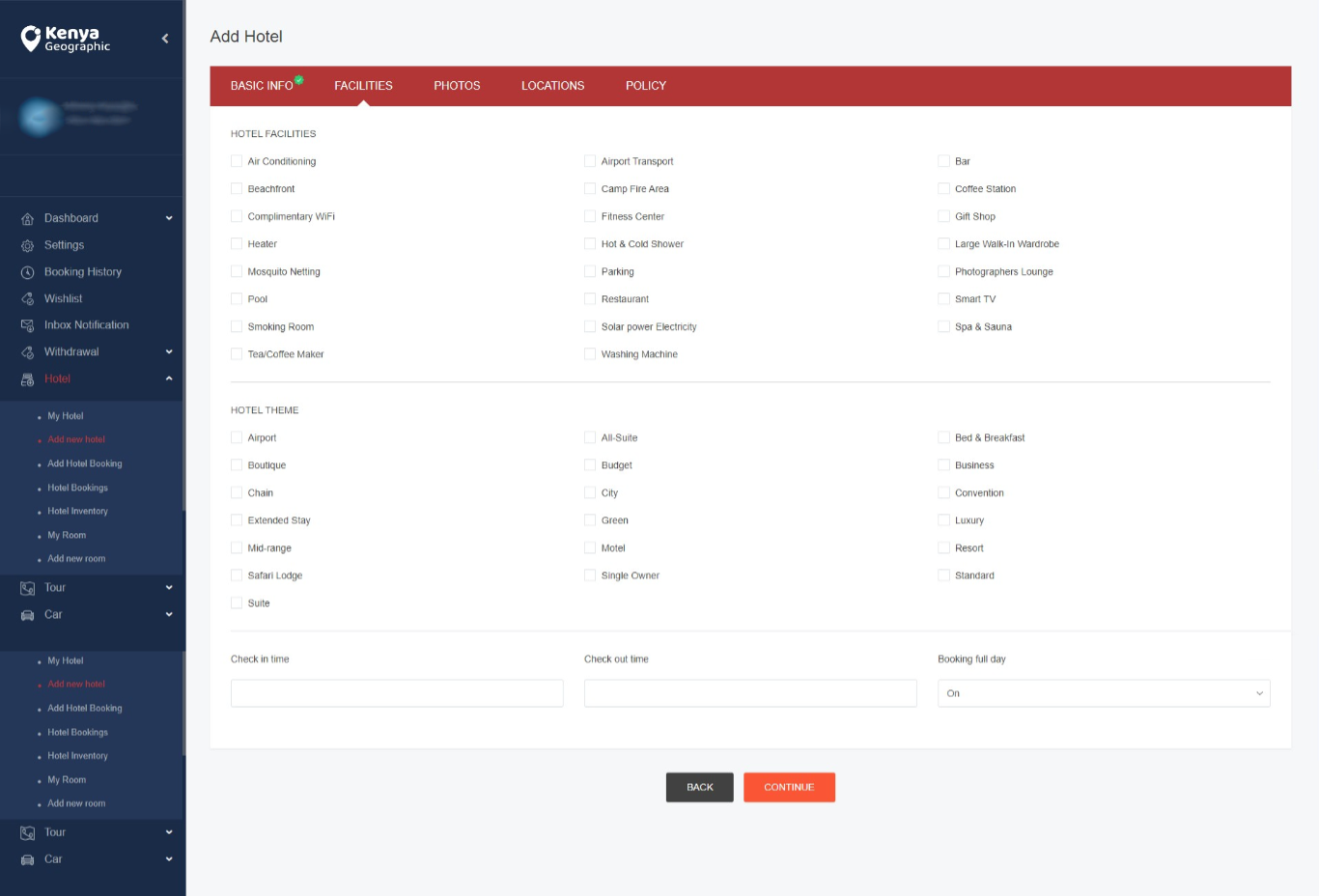
- Add your relevant Hotel Facilities such as air conditioning and so on. This is one of the features we have where you can now talk about the amenities you offer to bookers. Let us know if a facility you need is not listed and we will add it for you promptly.
- Choose a Hotel Theme that suits your hotel such as Bed & Breakfast, Budget and so on. If your hotel theme is not listed, let us know so we can add it for you.
- Add Check in time, Check out time and specify whether bookers will be Booking full day. Click Continue to go to the Photos tab below.
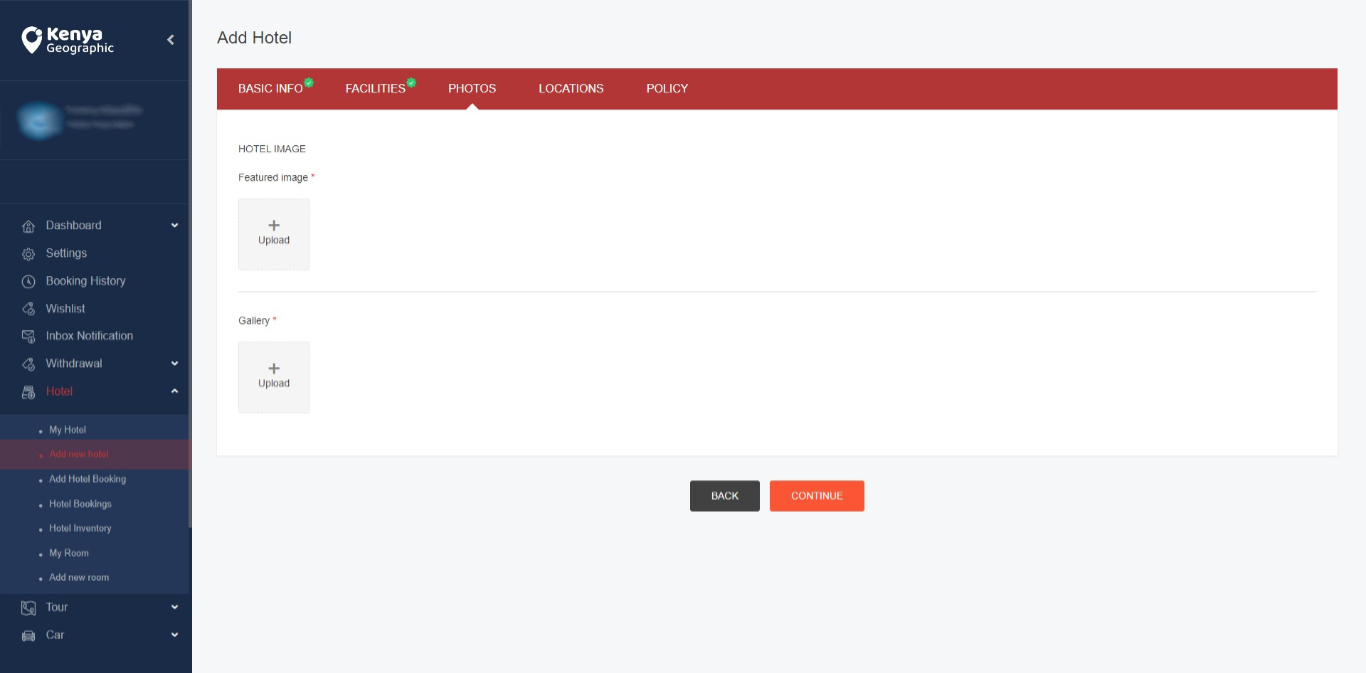
- Add a Featured Image which appears at the top of your listing profile
- Add your photo gallery to further showcase the features and amenities on offer with your booking. We recommend at least 24 1366 by 768 pixel, high-quality photos here. Download our Partner Content Guide for more details. Click the Continue button to move to the Locations tab below.
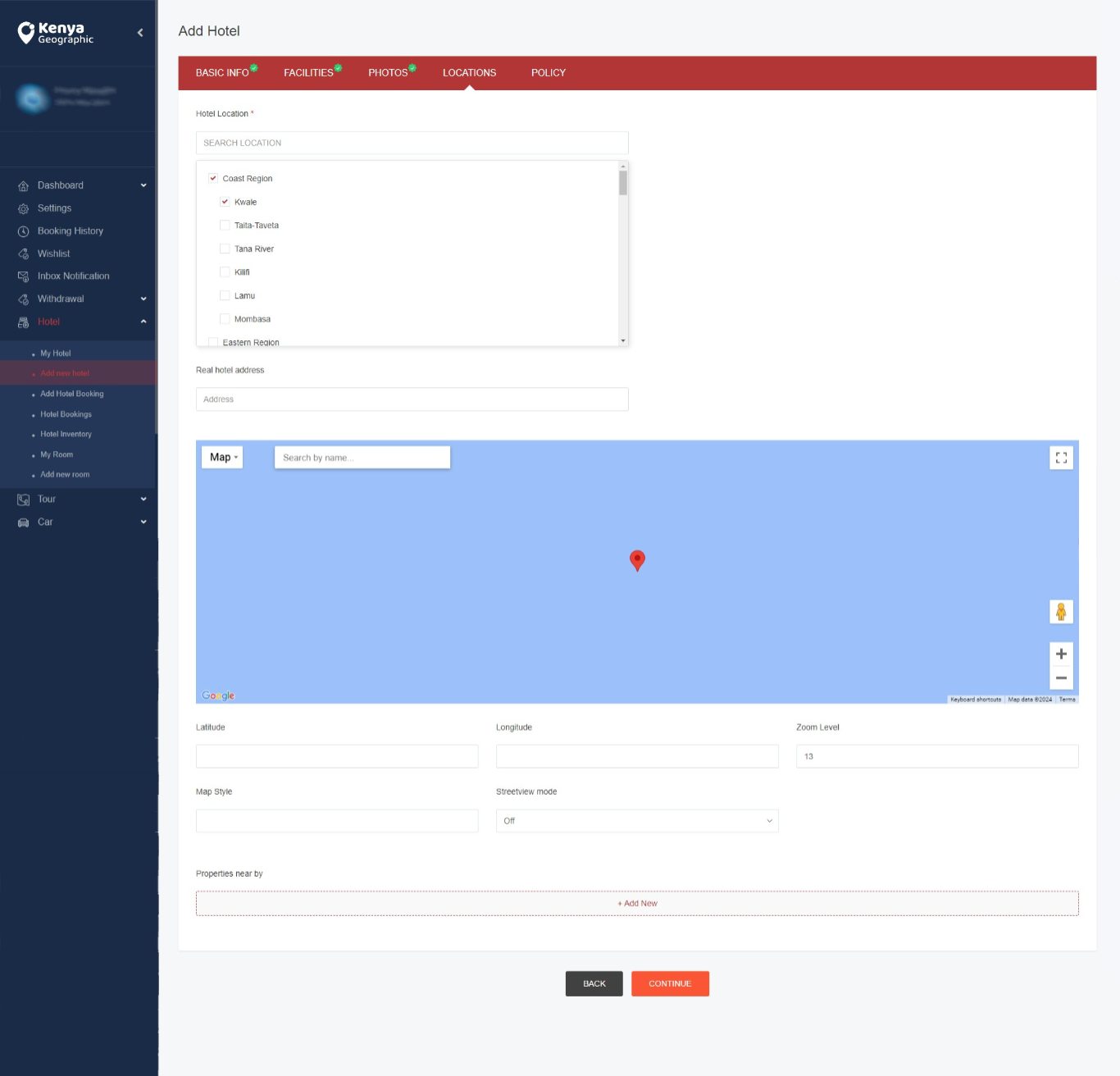
- Choose Hotel Location from the drop-down list. Our listings are grouped by Region and County. We have 8 Regions and 47 Counties. Ensure you select the region followed by the County where your listing is located.
- In the next box enter the Real hotel address. This is the physical location on Google Maps. When you select this, the Latitude and Longitude are auto-filled. Choose an appropriate Zoom Level. We recommend a level of 23. The Map Style is also auto-filled. Set streetview mode to off. Skip setting properties near by and click the Continue button to go the the Policy tab below.
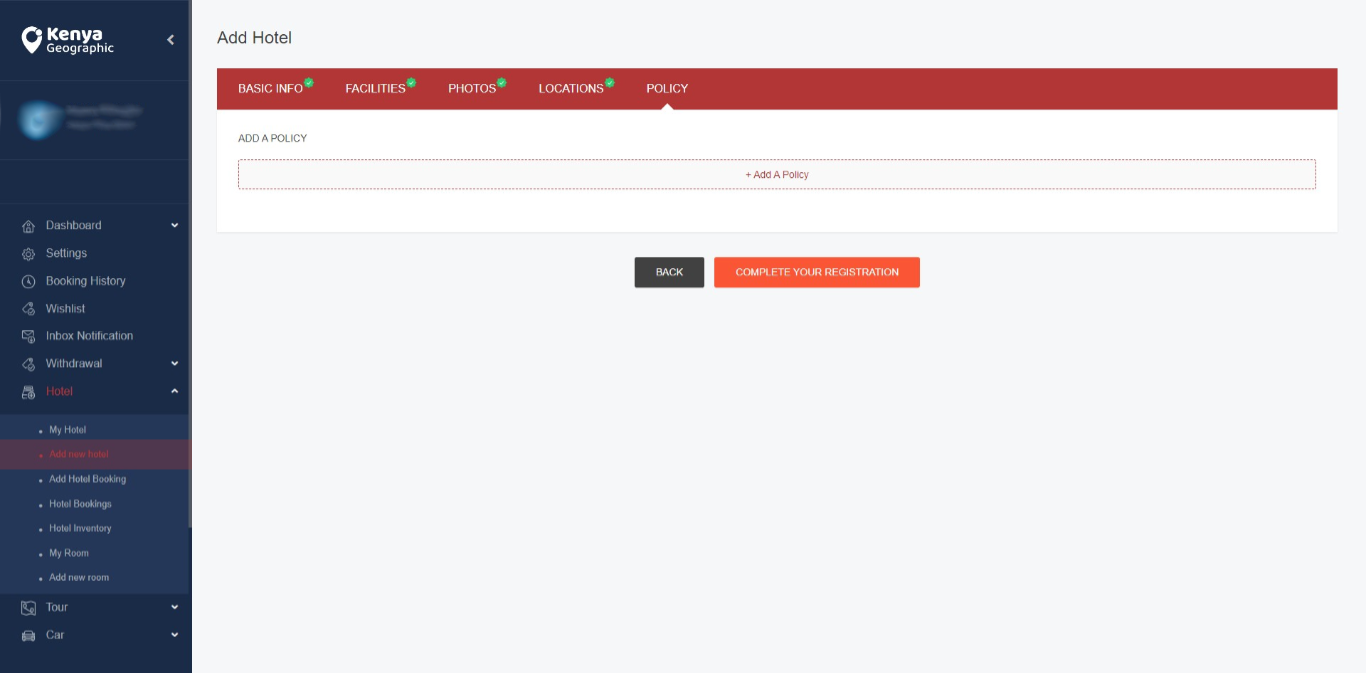
- Add your hotel policy and click the Complete Registration button. You will see a confirmation message that you have successfully registered your hotel.
- Wait for the Kenya Geographic to review your new submission and approve it to go live.